Patient Hub – Guide for Service Users using a Mobile Phone

These are the steps to follow if you are completing the questionnaire on a mobile phone.

Completing a Questionnaire via a Smartphone or Mobile

Step 1

  • You will receive a message via text or email.
  • The message you receive will have a link to access the Patient Hub, which will be the Patient Portal login page (https://www.leedsandyorkpft.nhs.uk/patient_portal/login).
  • When you click this link, you will automatically be redirected to the Patient Hub website (https://patienthub-lypft.oncreate.app/login).
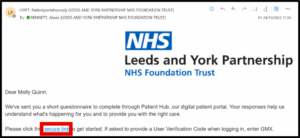
  • Click the secure link in the text message to start.
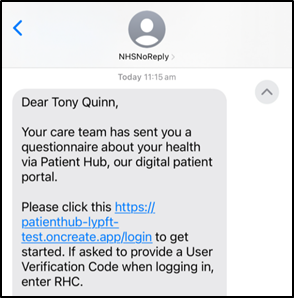
Screenshot of a text message from NHSNoReply. The message says: 'Dear Tony Quinn, Your care team has sent you a questionnaire about your health via Patient Hub, our digital patient portal. Please click this https://patienthub-lypft-test.oncreate.app/login to get started. If asked to provide a User Verification Code when logging in, enter RHC.' The time shown is 11:15 am. Screenshot of an email from Leeds and York Partnership NHS Foundation Trust. The email says: 'Dear Molly Quinn, We've sent you a short questionnaire to complete through Patient Hub, our digital patient portal. Your responses help us understand what's happening for you and to provide you with the right care. Please click the secure link to get started. If asked to provide a User Verification Code when logging in, enter GMX.' The NHS logo and Leeds and York Partnership NHS Foundation Trust branding are visible at the top.

Step 2

  • You will be redirected to the Patient Portal login page.
  • Enter your mobile phone number and date of birth and click ‘Next’.
  • You can also switch to sign in using your email and date of birth by clicking the grey ‘Sign in with email’ button.
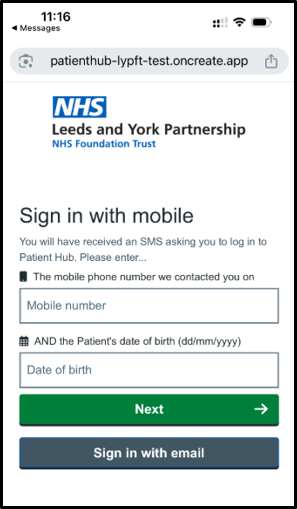
Screenshot of the Patient Hub login page on a mobile browser. The page shows the Leeds and York Partnership NHS Foundation Trust logo and the heading 'Sign in with mobile.' Instructions say: 'You will have received an SMS asking you to log in to Patient Hub. Please enter the mobile phone number we contacted you on AND the patient's date of birth (dd/mm/yyyy).' There are two input fields labeled 'Mobile number' and 'Date of birth,' followed by a green 'Next' button and a gray 'Sign in with email' button.

Step 3

  • You will be sent a verification code to the mobile number (or email address) you have entered.
  • Copy the code you are sent ready to enter it into the boxes on the next page. You will have about 2 minutes 30 seconds to do this.
  • You can click ‘Resend authentication code to your phone’ if the code doesn’t come through or it has been more than a few minutes since you received it.
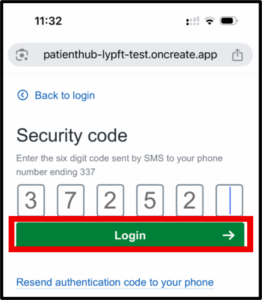
  • Enter the code you have been sent into the boxes on the login screen and click Login. Entering the code may also automatically log you into Patient Hub without you needing to click the green login button.


Screenshot of the Patient Hub security code entry page on a mobile browser. The page shows six empty input boxes for entering a six-digit code sent by SMS. Below the boxes is a green 'Login' button and a link labeled 'Resend authentication code to your phone.' The NHS logo and Leeds and York Partnership NHS Foundation Trust branding are visible at the top. Screenshot of a text message that says: 'Your security code is 372522 Screenshot of the Patient Hub security code entry page on a mobile browser. The page shows six input boxes filled with the digits '3 7 2 5 2 .' Below the boxes is a green 'Login' button highlighted with a red border. The page also includes a link labeled 'Resend authentication code to your phone' and a back navigation link labeled 'Back to login.'

Step 4

  • Click on ‘Questionnaires’ (this will also display how many questionnaires you have been sent to answer).

Screenshot of the Patient Hub dashboard showing the Leeds and York Partnership NHS Foundation Trust logo at the top. The page greets the user with 'Welcome Tony' and displays five navigation tiles: 'Appointments,' 'Messages,' 'Questionnaires' (highlighted with a red border and showing a yellow badge with the number 2), 'Profile,' and 'Logout.

Step 5

  • You will see the questionnaire(s) you have been sent.
  • Click ‘Start questionnaire’ for the one you’d like to complete.
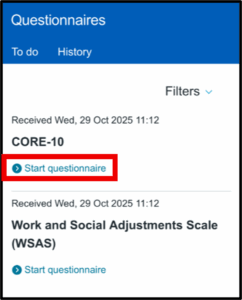
Screenshot of the Patient Hub 'Questionnaires' page on a mobile device. The page has two tabs: 'To do' and 'History.' Under 'To do,' two questionnaires are listed: 'CORE-10,' received Wed, 29 Oct 2025 at 11:12, with a blue link labeled 'Start questionnaire' highlighted in red; and 'Work and Social Adjustments Scale (WSAS),' also received Wed, 29 Oct 2025 at 11:12, with a blue 'Start questionnaire' link. A 'Filters' dropdown is visible at the top.

Step 6

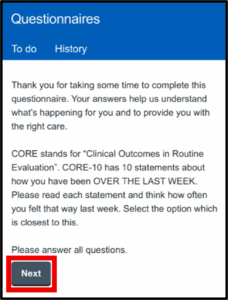
  • Read through any instructions and click ‘Next

Screenshot of the Patient Hub 'Questionnaires' page showing instructions for completing the CORE-10 questionnaire. The text explains that answers help the care team understand what’s happening and provide the right care. It states CORE stands for 'Clinical Outcomes in Routine Evaluation' and that CORE-10 has 10 statements about how the user has been over the last week. Users are asked to read each statement and select the option closest to their experience. At the bottom, there is a dark gray button labeled 'Next,' highlighted with a red border.

Step 7

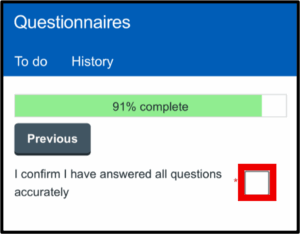
  • Answer the questionnaire questions – when you are at the end, confirm that you have answered the questions accurately by ticking the box (click the box to tick it).
  • The click Submit.

Screenshot of the Patient Hub 'Questionnaires' page showing a progress bar labeled '91% complete' in green. Below the bar is a gray 'Previous' button and a statement: 'I confirm I have answered all questions accurately' with an empty checkbox outlined in red to the right. Screenshot of the Patient Hub 'Questionnaires' page showing a progress bar labeled '91% complete' in green. Below the bar is a gray 'Previous' button and a statement: 'I confirm I have answered all questions accurately' with a checked blue checkbox. A green 'Submit' button outlined in red is visible below.

Step 8

  • You will see a page like this after completing the questionnaire. If you have more than one questionnaire to complete, click on ‘To do’ to view any remaining.
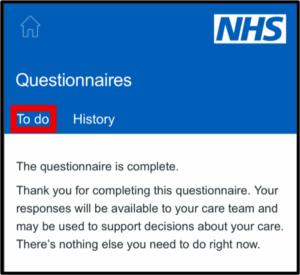
Screenshot of the Patient Hub 'Questionnaires' page with the NHS logo at the top. Two tabs are visible: 'To do' (highlighted in red) and 'History.' The main message reads: 'The questionnaire is complete. Thank you for completing this questionnaire. Your responses will be available to your care team and may be used to support decisions about your care. There’s nothing else you need to do right now.'

Step 9

  • Follow steps 5-7 to complete any other questionnaires until this list is empty.
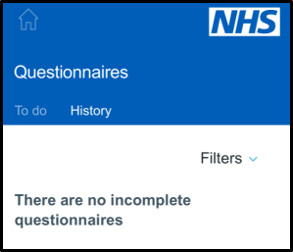
  • The page will say ‘There are no incomplete questionnaires‘ when you have no other questionnaires to complete.
  • Click the home icon and click logout to leave Patient Hub safely.
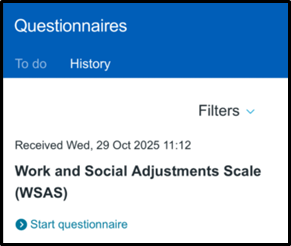
creenshot of the Patient Hub 'Questionnaires' page showing the 'History' tab selected. The page lists one questionnaire: 'Work and Social Adjustments Scale (WSAS),' received Wed, 29 Oct 2025 at 11:12, with a blue link labeled 'Start questionnaire.' A 'Filters' dropdown is visible at the top. Screenshot of the Patient Hub 'Questionnaires' page showing the 'History' tab selected. The page displays the message: 'There are no incomplete questionnaires.' The NHS logo is visible at the top, and a 'Filters' dropdown is present.